Ethernet Standards
Ethernet is the undisputed king of local area networking, and the CCNA 200-301 exam expects you to know its standards cold. From the physical cabling to the frame structure that carries your data, Ethernet standards define how devices communicate at Layers 1 and 2. This chapter covers exam objective 1.3, ensuring you can identify, compare, and troubleshoot Ethernet standards in real-world networks.
Jump to a section
The Postal Service of Ethernet
Imagine the postal service delivers mail in your town. Ethernet standards are like the rules for envelopes, addresses, and delivery trucks. The envelope is the Ethernet frame: it has a specific size (64 to 1518 bytes), a destination address (MAC), a source address, and a payload. The truck is the physical medium—copper cable (twisted-pair) or fiber optic. The speed limit is the data rate: 10 Mbps, 100 Mbps, 1 Gbps, or 10 Gbps. Just as a postal truck can't carry an oversized package without special handling, Ethernet frames must stay within size limits or they get dropped (jabber). The address on the envelope must be unique (MAC address, burned into the NIC). The postal service also has rules for how trucks connect to each other: hubs repeat everything, switches forward based on addresses, and routers connect different networks. Auto-negotiation is like two postal workers agreeing on the fastest horse-drawn carriage or a modern truck—they negotiate speed and duplex (half-duplex like a one-lane road, full-duplex like a two-lane highway). If one worker insists on a fixed speed and the other wants to negotiate, they might end up with a mismatch, causing collisions and retransmissions—just like a traffic jam. The postal analogy breaks down when we consider collisions: in half-duplex Ethernet, two devices can't talk at once, like two people on a single walkie-talkie. Full-duplex allows simultaneous send/receive, like two separate phone lines. Ethernet standards ensure that all devices play by the same rules, so your email reaches its destination without getting lost or mangled.
How It Actually Works
What Are Ethernet Standards?
Ethernet standards are defined by the IEEE 802.3 working group. They specify everything from the physical layer (cables, connectors, signaling) to the data link layer (frame format, MAC addressing, error detection). For the CCNA, you need to know the common standards: 10BASE-T, 100BASE-TX, 1000BASE-T, 10GBASE-T, and fiber variants like 1000BASE-SX/LX. Each standard has a specific speed, maximum cable length, and connector type. Understanding these helps you choose the right cable for the job and troubleshoot physical layer issues.
The Ethernet Frame Structure
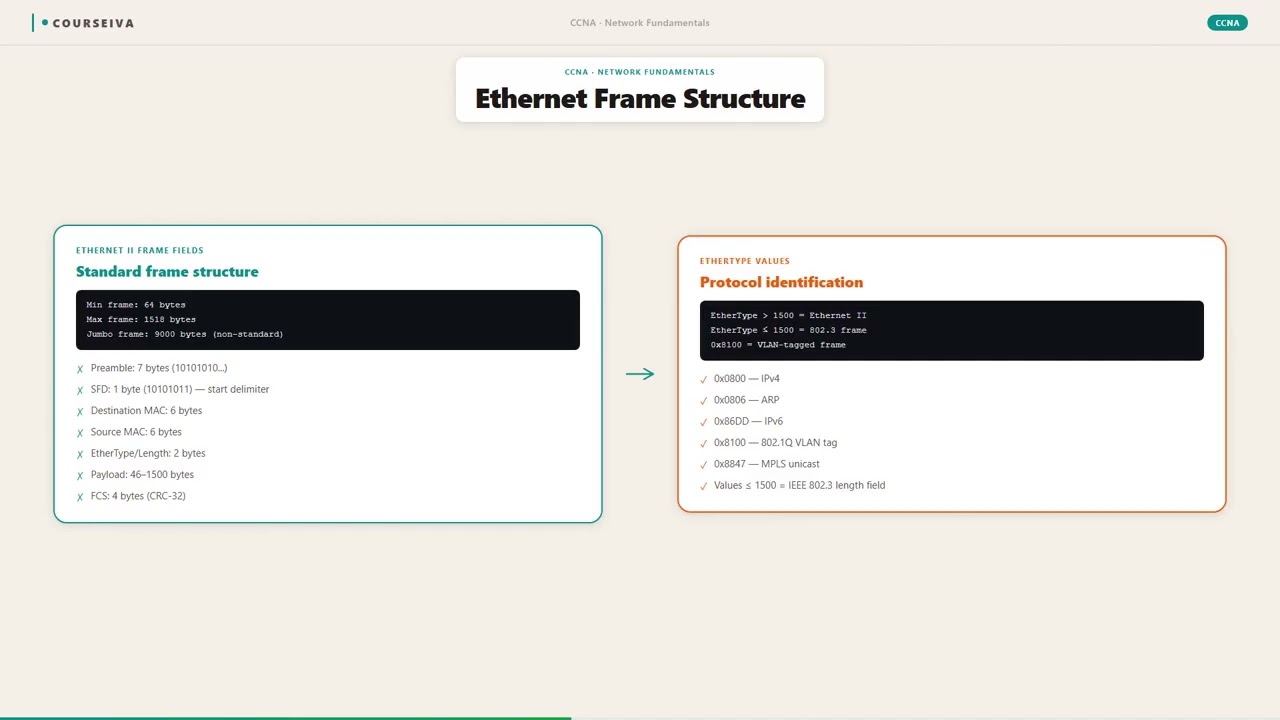
The Ethernet frame is the Layer 2 PDU. It has these fields:
Preamble (7 bytes): Synchronization pattern, not part of the actual frame.
Start Frame Delimiter (1 byte): Signals start of frame.
Destination MAC Address (6 bytes): Who gets the frame.
Source MAC Address (6 bytes): Who sent it.
EtherType (2 bytes): Indicates the upper-layer protocol (e.g., 0x0800 for IPv4, 0x86DD for IPv6). In 802.3 frames, this field is Length (for frames ≤1500 bytes).
Payload (46-1500 bytes): The encapsulated packet.
Frame Check Sequence (4 bytes): CRC for error detection.
The minimum frame size is 64 bytes (including FCS, excluding preamble/SFD). If the payload is less than 46 bytes, padding is added. The maximum frame size is 1518 bytes (or 1522 with 802.1Q tag). Jumbo frames are larger (up to 9000 bytes) but not part of the standard—Cisco exams test standard sizes.
How Ethernet Works Step by Step
Carrier Sense: Before sending, a device listens to the medium. If no signal is detected, it proceeds. If the medium is busy, it waits.
Collision Detection: In half-duplex, if two devices transmit simultaneously, a collision occurs. The devices detect the collision, send a jam signal, and back off using a random timer (exponential backoff).
Full-Duplex: With a dedicated switch port, no collisions occur. The device can send and receive simultaneously. No CSMA/CD needed.
Auto-Negotiation: Devices on a link exchange Fast Link Pulses (FLPs) to advertise capabilities. They agree on the highest common speed and duplex. If one side is hard-set and the other is auto, the auto side defaults to half-duplex, causing a mismatch.
Key Timers and Defaults
Slot time: 512 bit times (for 10/100 Mbps). Determines minimum frame size (64 bytes).
Interframe Gap: 96 bit times between frames.
Backoff: After collision, random wait from 0 to 2^n-1 slot times, where n is the retry count (max 10).
Jabber: A station transmitting for longer than the maximum frame time (about 1.2 ms for 10 Mbps).
IOS CLI Verification Commands
Use show interfaces to see Ethernet status:
Router# show interfaces gigabitEthernet 0/0
GigabitEthernet0/0 is up, line protocol is up
  Hardware is CN Gigabit Ethernet, address is 0011.2233.4455 (bia 0011.2233.4455)
  Internet address is 192.168.1.1/24
  MTU 1500 bytes, BW 1000000 Kbit/sec, DLY 10 usec,
     reliability 255/255, txload 1/255, rxload 1/255
  Encapsulation ARPA, loopback not set
  Keepalive set (10 sec)
  Full-duplex, 1000Mb/s, media type is RJ45
  output flow-control is unsupported, input flow-control is unsupported
  ARP type: ARPA, ARP Timeout 04:00:00
  Last input 00:00:00, output 00:00:00, output hang never
  Last clearing of "show interface" counters never
  Input queue: 0/75/0/0 (size/max/drops/flushes); Total output drops: 0
  Queueing strategy: fifo
  Output queue: 0/40 (size/max)
  5 minute input rate 0 bits/sec, 0 packets/sec
  5 minute output rate 0 bits/sec, 0 packets/sec
     0 packets input, 0 bytes, 0 no buffer
     Received 0 broadcasts (0 IP multicasts)
     0 runts, 0 giants, 0 throttles
     0 input errors, 0 CRC, 0 frame, 0 overrun, 0 ignored
     0 watchdog, 0 multicast, 0 pause input
     0 input packets with dribble condition detected
     0 packets output, 0 bytes, 0 underruns
     0 output errors, 0 collisions, 0 interface resets
     0 unknown protocol drops
     0 babbles, 0 late collision, 0 deferred
     0 lost carrier, 0 no carrier, 0 pause output
     0 output buffer failures, 0 output buffers swapped out
Key fields: Full-duplex, 1000Mb/s shows negotiated speed/duplex. 0 collisions on a full-duplex link is normal. 0 late collision indicates no cabling length issues.
show interfaces status gives a quick summary:
Switch# show interfaces status
Port      Name   Status       Vlan       Duplex  Speed Type
Gi0/1            connected    1          a-full  a-1000 10/100/1000BaseTX
Gi0/2            notconnect   1          auto    auto   10/100/1000BaseTX
a-full means auto-negotiated full-duplex.
show interfaces trunk for trunk links (802.1Q).
Interaction with Related Protocols
Ethernet works with ARP to map IP addresses to MAC addresses. Spanning Tree Protocol (STP) prevents loops in redundant Ethernet topologies. VLANs (802.1Q) tag frames to segregate traffic. Link Aggregation (LACP) bundles multiple links for higher bandwidth. All these rely on Ethernet standards.
Cable Types and Connectors
10BASE-T: Cat3 or better, RJ45, 100m max.
100BASE-TX: Cat5, RJ45, 100m max.
1000BASE-T: Cat5e, RJ45, 100m max.
10GBASE-T: Cat6a, RJ45, 100m max (Cat6 up to 55m).
Fiber: 1000BASE-SX (multimode, 550m), 1000BASE-LX (single-mode, 5km), 10GBASE-SR (multimode, 300m), 10GBASE-LR (single-mode, 10km). Connectors: LC, SC, ST.
Cisco exams test cable types and distances. Remember: for copper, the max distance is 100 meters for all common standards. Fiber distances vary by type.
Walk-Through
Identify the Ethernet Standard
Examine the cable and device interfaces. Look for labeling on the cable (Cat5e, Cat6a) and on the port (10/100/1000, SFP). The standard name encodes speed and medium: e.g., 1000BASE-T = 1000 Mbps, baseband, twisted pair. 10GBASE-SR = 10 Gbps, baseband, short-range fiber. For the CCNA, you must know the speed and max distance for each common standard. Use `show interfaces` to see the negotiated speed and duplex. If the link is not up, check the cable type and length.
Check Auto-Negotiation Status
Auto-negotiation is critical for proper link establishment. Use `show interfaces` and look for 'Full-duplex, 1000Mb/s' or 'Half-duplex, 100Mb/s'. If the output shows 'Half-duplex' but you expect full, there might be a mismatch. A common mismatch: one side hard-set to 100/full, the other auto-negotiating. The auto side will default to half-duplex because it only hears FLPs but not a specific advertisement. This causes collisions and poor performance. To fix, either set both sides to auto or both to the same manual settings. Use `speed` and `duplex` commands under interface configuration mode (e.g., `speed 100`, `duplex full`).
Verify Cable Type and Length
Use `show interfaces` to check for errors like runts, giants, CRC errors, and late collisions. Runts (<64 bytes) may indicate collisions or faulty NICs. Giants (>1518 bytes) often result from jumbo frames misconfiguration. CRC errors suggest electrical interference or bad cabling. Late collisions occur when the cable exceeds the maximum length (100m for copper) or there is a duplex mismatch. Use a cable tester to verify length and wiring. For fiber, check the power budget using an optical power meter. In the exam, know the max distances: 100m for twisted pair, 550m for 1000BASE-SX (multimode), 5km for 1000BASE-LX (single-mode).
Check for Duplex Mismatch
A duplex mismatch is a classic CCNA troubleshooting scenario. Symptoms: slow performance, high collision counts, and CRC errors. Use `show interfaces` and look at the duplex setting on both ends. If one is full and the other half, you have a mismatch. The side set to half-duplex will detect collisions and back off, while the full-duplex side does not, causing frame loss. Resolution: configure both ends identically. Best practice: use auto-negotiation on both ends for copper links. For fiber, auto-negotiation is optional; often set manually. Verify with `show interfaces status` which shows the negotiated duplex (a-full, a-half).
Verify Frame Size and MTU
The standard Ethernet MTU is 1500 bytes. Jumbo frames (9000 bytes) are non-standard but supported on many switches. If one device sends jumbo frames and the other does not support them, the frames will be dropped. Use `show interfaces` to see the MTU. To change MTU on a Cisco interface: `interface gi0/0`, `mtu 9000`. Note: The MTU command affects Layer 3; the Layer 2 frame size will be larger (adds header). On the exam, know that the maximum standard frame size is 1518 bytes (or 1522 with 802.1Q). If you see 'giants' in the interface counters, it means received frames exceeded the maximum size. Check for jumbo frame misconfiguration.
Troubleshoot Physical Layer Issues
Use `show interfaces` to check for 'input errors', 'output errors', 'collisions', and 'interface resets'. A high number of input errors with CRC errors points to cabling issues. 'Runts' and 'giants' indicate frame size problems. 'Late collisions' suggest a cable length issue or duplex mismatch. 'Interface resets' may occur if the cable is disconnected or if there is a loop. Use `show interfaces counters errors` for a detailed error breakdown. If the interface is down/down, check the cable, ensure both ends are powered, and verify that the correct cable type is used (straight-through vs crossover for older devices; modern switches auto-MDIX).
What This Looks Like on the Job
In a typical enterprise, you'll find a mix of 1G and 10G Ethernet. Access switches connect to end devices (PCs, printers) with 1000BASE-T (Cat5e) at 1 Gbps. Distribution switches use 10GBASE-T (Cat6a) or fiber (10GBASE-SR) for uplinks. A common problem: a user reports slow performance. You check the switch port and see it negotiated at 100 Mbps instead of 1 Gbps. The cause? A bad patch cable or a cable that is Cat5 (not Cat5e) running at 100 meters. Replacing with Cat5e fixes it.
Another scenario: a new building is wired with Cat6a for future 10G. The switches support 10GBASE-T, but the cables run 110 meters. The link fails because the max distance for 10GBASE-T over Cat6a is 100 meters. You need to use fiber or add a switch in the middle.
Fiber is common for long distances or high interference environments. For example, connecting two buildings 2 km apart uses 1000BASE-LX single-mode fiber with LC connectors. If the link doesn't come up, you check the optical power with a meter. If the receive power is too low, the cable might be dirty or the distance exceeds the budget.
Misconfiguration example: an administrator hard-sets a server NIC to 1 Gbps full-duplex, but the switch port is set to auto. The switch auto-negotiates to half-duplex (because it only detects the link but not the capabilities). The result: high collisions, dropped packets, and the server appears slow. The fix: set both to auto or both to the same manual settings. In production, always prefer auto-negotiation for copper links.
Scale: In a data center, you might have thousands of 10G or 25G links. Monitoring tools track CRC errors and collisions to identify failing cables. Performance considerations: full-duplex is essential for high throughput; half-duplex is legacy. Auto-negotiation ensures optimal speed and duplex, but it must be enabled on both ends.
How CCNA 200-301 Actually Tests This
The CCNA 200-301 exam tests Ethernet standards under objective 1.3: 'Compare and contrast Ethernet standards.' You must know the speed, cable type, and maximum distance for 10BASE-T, 100BASE-TX, 1000BASE-T, 10GBASE-T, and common fiber standards (1000BASE-SX/LX, 10GBASE-SR/LR).
Common wrong answers: 1. Believing 1000BASE-T requires Cat6: It actually requires Cat5e. Cat6 is for 10GBASE-T (up to 55m). 2. Thinking max distance for all copper is 100m: That's correct for most, but 10GBASE-T over Cat6 is only 55m. Over Cat6a, it's 100m. 3. Confusing half-duplex and full-duplex: Half-duplex uses CSMA/CD; full-duplex does not. On the exam, if a link has collisions, it must be half-duplex. 4. Auto-negotiation mismatch: The side set to auto will default to half-duplex if the other side is hard-set. Many candidates think the auto side will match the hard-set speed/duplex, but it doesn't—it only detects link, not capabilities.
Specific values to memorize: - 10BASE-T: 10 Mbps, Cat3, 100m - 100BASE-TX: 100 Mbps, Cat5, 100m - 1000BASE-T: 1 Gbps, Cat5e, 100m - 10GBASE-T: 10 Gbps, Cat6a, 100m (Cat6: 55m) - 1000BASE-SX: 1 Gbps, multimode fiber, 550m - 1000BASE-LX: 1 Gbps, single-mode fiber, 5km - 10GBASE-SR: 10 Gbps, multimode, 300m - 10GBASE-LR: 10 Gbps, single-mode, 10km
Calculation traps: None directly, but you may need to calculate whether a cable run exceeds the max distance. For example, a run of 120m with Cat5e for 1 Gbps will fail.
Decision rule: If a question describes a link with collisions or late collisions, suspect a duplex mismatch or excessive cable length. If the link is down, check cable type and distance. If performance is slow, check auto-negotiation.
Key Takeaways
Ethernet standards are defined by IEEE 802.3, covering speed, cable type, and max distance.
Common copper standards: 10BASE-T (10 Mbps, Cat3, 100m), 100BASE-TX (100 Mbps, Cat5, 100m), 1000BASE-T (1 Gbps, Cat5e, 100m), 10GBASE-T (10 Gbps, Cat6a, 100m; Cat6 55m).
Fiber standards: 1000BASE-SX (MM, 550m), 1000BASE-LX (SM, 5km), 10GBASE-SR (MM, 300m), 10GBASE-LR (SM, 10km).
Auto-negotiation uses FLPs to agree on speed and duplex; if one side is hard-set, the auto side defaults to half-duplex.
Full-duplex allows simultaneous send/receive; half-duplex uses CSMA/CD with collisions.
Use 'show interfaces' to verify speed, duplex, and errors (collisions, CRC, runts, giants).
Maximum standard Ethernet frame size is 1518 bytes (1522 with 802.1Q tag); MTU is 1500 bytes.
Easy to Mix Up
These come up on the exam all the time. Here's how to tell them apart.
1000BASE-T
Copper twisted pair (Cat5e)
Max distance 100m
RJ45 connector
Susceptible to EMI
Lower cost per port
1000BASE-SX
Multimode fiber
Max distance 550m
LC or SC connector
Immune to EMI
Higher cost per port (including optics)
Watch Out for These
Mistake
1000BASE-T requires Cat6 cable.
Correct
1000BASE-T requires Cat5e or better. Cat5e supports 1 Gbps up to 100m. Cat6 is for 10GBASE-T.
Candidates confuse the cable requirements for 1 Gbps and 10 Gbps.
Mistake
All Ethernet copper standards have a maximum distance of 100 meters.
Correct
Most do (10BASE-T, 100BASE-TX, 1000BASE-T, 10GBASE-T over Cat6a), but 10GBASE-T over Cat6 has a maximum of 55 meters.
They generalize from the common 100m rule without knowing the exception.
Mistake
If one side is hard-set to 100/full and the other is auto, the auto side will also negotiate to 100/full.
Correct
The auto side will detect a link but not receive FLPs, so it defaults to half-duplex (and the speed it can detect, often 100 Mbps). The result is a duplex mismatch.
Candidates think auto-negotiation always matches the other side's settings, but it only works if both are auto.
Mistake
Gigabit Ethernet always uses full-duplex.
Correct
Gigabit Ethernet can operate in half-duplex, but in practice it's almost always full-duplex. The standard supports both, but half-duplex is rare.
Candidates assume high speed implies full-duplex, but the standard includes half-duplex for backward compatibility (though rarely used).
Do You Actually Know This?
Reveal each answer, then mark whether you got it right. Score 60%+ to unlock the next chapter.
Frequently Asked Questions
What is the difference between half-duplex and full-duplex Ethernet?
Half-duplex allows communication in both directions, but only one direction at a time. It uses CSMA/CD to detect collisions. Full-duplex allows simultaneous send and receive, doubling the potential throughput. Full-duplex requires a dedicated switch port (no hub) and no collisions. On the CCNA exam, remember that full-duplex is used with switches, half-duplex with hubs or when there is a duplex mismatch.
What is auto-negotiation and how does it work?
Auto-negotiation is a mechanism that allows two devices on a link to automatically select the best common speed and duplex. It works by exchanging Fast Link Pulses (FLPs) that encode capabilities. The devices then choose the highest common speed and, if possible, full-duplex. If one side is hard-set, the auto side defaults to half-duplex. Always use auto on both ends for copper links. For fiber, auto-negotiation is optional.
What is the maximum cable length for 1000BASE-T?
100 meters over Cat5e or better. This is the same for 10BASE-T and 100BASE-TX. For 10GBASE-T over Cat6a, it's also 100m, but over Cat6 it's 55m. The 100m limit is due to signal attenuation. For longer distances, use fiber.
What does 'jabber' mean in Ethernet?
Jabber is when a device transmits for longer than the maximum allowed time (about 1.2 ms for 10 Mbps). This can be caused by a faulty NIC. The switch will detect jabber and stop forwarding the frame. In the 'show interfaces' output, you might see 'jabber' counters. Jabber is a type of error that can cause network instability.
How do I know if a cable is straight-through or crossover?
Straight-through cables have the same pinout on both ends (T568A or T568B). Crossover cables swap the transmit and receive pairs (pin 1 to 3, 2 to 6). Modern switches support Auto-MDIX, which automatically detects and corrects the cable type. On the CCNA exam, you may need to know that for direct connection between two PCs (or two switches without Auto-MDIX), you need a crossover cable. For PC to switch, use straight-through.
What are runts and giants?
Runts are frames smaller than 64 bytes (minimum size). They can be caused by collisions or faulty NICs. Giants are frames larger than 1518 bytes (or 1522 with 802.1Q). They can be caused by jumbo frames misconfiguration or faulty NICs. Both are counted in 'show interfaces' output. High numbers indicate physical layer issues.
What is the difference between 1000BASE-SX and 1000BASE-LX?
Both are Gigabit Ethernet over fiber. 1000BASE-SX uses multimode fiber with a shorter wavelength (850 nm) and a maximum distance of 550m. 1000BASE-LX uses single-mode fiber with a longer wavelength (1310 nm) and a maximum distance of 5 km (or 10 km with some optics). SX is cheaper for short distances; LX is for longer distances.
Terms Worth Knowing
Ready to put this to the test?
You've just covered Ethernet Standards — now see how well it sticks with free CCNA 200-301 practice questions. Full explanations included, no account needed.
Done with this chapter?