VLANs Explained
Imagine a single physical switch that must keep traffic from the Accounting department completely separate from Engineering, even though they share the same hardware. VLANs (Virtual Local Area Networks) are the mechanism that makes this possible, and they are foundational to every modern enterprise network. On the CCNA 200-301 exam (objective 2.1: Configure, verify, and troubleshoot VLANs), you must understand how VLANs work at the frame level, how to configure them on Cisco IOS switches, and—most critically—how misconfigurations cause connectivity failures that can stump even experienced engineers.
Jump to a section
The Apartment Building Mailbox Analogy
One large apartment building, one hundred apartments, and a central hallway—a physical Ethernet switch. Each apartment (host) has a door (port) that connects to a central hallway (the switch backplane). In a flat network (no VLANs), every resident can walk into any apartment—clearly a security and privacy disaster. VLANs are like assigning each apartment to a specific floor, and each floor has its own locked stairwell. When a resident on Floor 10 (VLAN 10) sends a letter (frame), the building's mail system (the switch) only delivers it to mailboxes (ports) on that same floor. The letter is tagged with a floor sticker (802.1Q tag) so that even if the letter passes through a central mailroom (trunk link) connecting to another building, the receiving building knows exactly which floor to deliver it to. Without that tag, the mailroom would have no idea which floor the letter belongs to, and it might deliver it to the wrong apartment—or just discard it. The switch does the same: it examines the VLAN ID in the frame header, and if the destination port is not a member of that VLAN, the frame is dropped. This is exactly how VLANs enforce logical separation: they restrict broadcast domains and control unicast forwarding, all while using the same physical switch hardware.
How It Actually Works
What is a VLAN and Why Does It Exist?
A VLAN (Virtual Local Area Network) is a logical grouping of devices within the same broadcast domain, regardless of their physical location on the network. By default, all ports on a Cisco switch belong to VLAN 1, the default VLAN. The primary reason VLANs exist is to segment a LAN into multiple isolated broadcast domains without requiring separate physical switches. Without VLANs, every frame sent as a broadcast would reach every port on the switch, consuming bandwidth and CPU cycles on every connected device. VLANs confine broadcasts to only those ports that belong to the same VLAN, improving performance and security.
How VLANs Work at the Frame Level
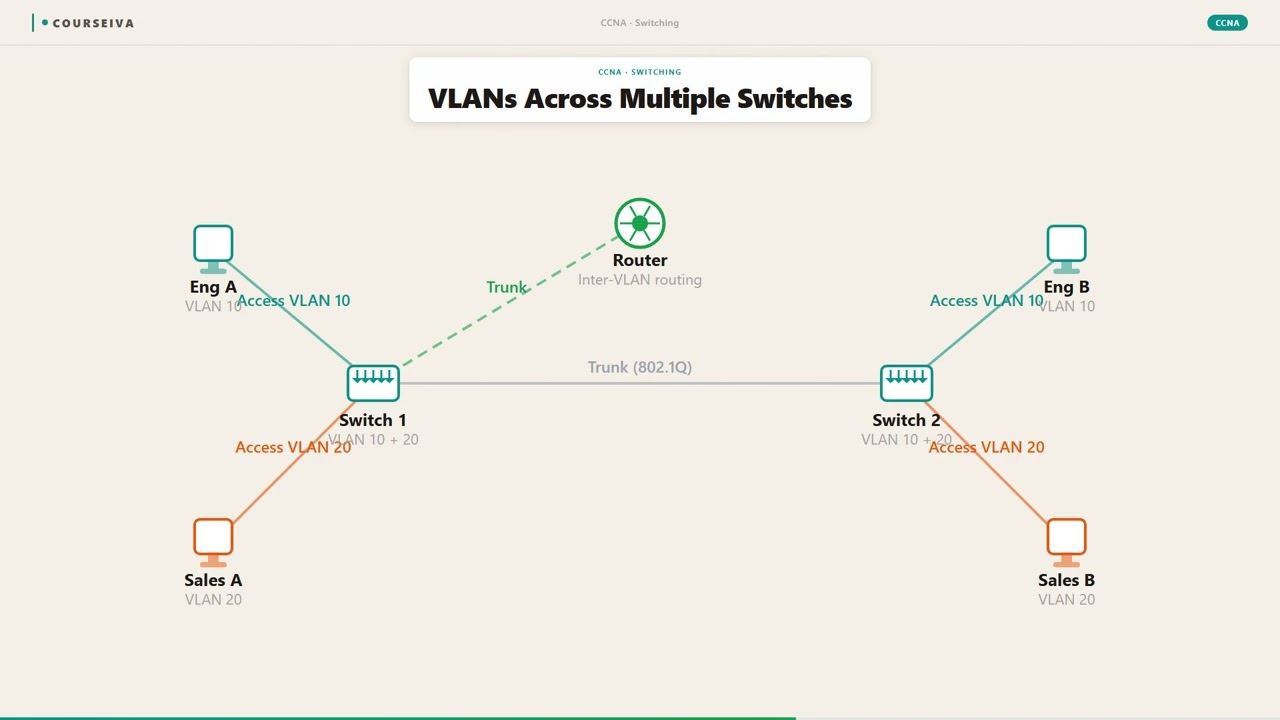
When a switch receives a frame on a port, it associates that frame with the VLAN configured on that port (the access VLAN). For frames destined to another switch over a trunk link, the switch inserts a 4-byte 802.1Q tag into the Ethernet frame header. This tag contains a 12-bit VLAN ID (VID), allowing up to 4094 VLANs (1-4094, with 0 and 4095 reserved). The tag is inserted between the Source MAC Address and the EtherType/Length fields. On the receiving switch, the tag is examined, and the frame is forwarded only to ports in that same VLAN. The original frame is restored (tag removed) before being sent out an access port.
Key VLAN Types and Defaults
Default VLAN (VLAN 1): All ports are in VLAN 1 by default. It cannot be deleted, but it is a security best practice to change the native VLAN on trunk ports to an unused VLAN (e.g., VLAN 999) to prevent VLAN hopping.
Native VLAN: On an 802.1Q trunk, the native VLAN (default VLAN 1) carries untagged frames. Both ends of the trunk must agree on the native VLAN; otherwise, frames will be misclassified, causing connectivity issues.
Data VLANs: User traffic VLANs, typically numbered 2-1001 (extended range 1006-4094 are also supported but not all switches allow them to be pruned from VTP).
Management VLAN: A dedicated VLAN (often VLAN 1 or a separate VLAN) for management traffic like SSH, SNMP, or Telnet to the switch's SVI (Switch Virtual Interface).
IOS CLI Configuration and Verification
To configure a VLAN on a Cisco IOS switch, you first create the VLAN in global configuration mode, then assign ports to it. Example:
Switch(config)# vlan 10
Switch(config-vlan)# name Engineering
Switch(config-vlan)# exit
Switch(config)# interface gigabitethernet 0/1
Switch(config-if)# switchport mode access
Switch(config-if)# switchport access vlan 10
Switch(config-if)# end
To verify VLAN configuration:
Switch# show vlan brief

VLAN Name                             Status    Ports
---- -------------------------------- --------- -------------------------------
1    default                          active    Gi0/2, Gi0/3, Gi0/4, Gi0/5
10   Engineering                      active    Gi0/1
To verify trunk configuration:
Switch# show interfaces trunk

Port        Mode         Encapsulation  Status        Native vlan
Gi0/1       on           802.1q         trunking      1

Port        Vlans allowed on trunk
Gi0/1       1-4094

Port        Vlans active and in local forwarding table
Gi0/1       1,10
Interaction with Related Protocols
VTP (VLAN Trunking Protocol): Cisco proprietary protocol that propagates VLAN information across switches. On CCNA, you must know that VTP is optional and often disabled in production due to the risk of a misconfigured switch wiping out the entire VLAN database.
STP (Spanning Tree Protocol): STP runs per VLAN (PVST+) on Cisco switches. Each VLAN has its own STP topology, which prevents loops but also consumes resources. Rapid PVST+ is the default on modern switches.
DTP (Dynamic Trunking Protocol): Cisco proprietary protocol used to negotiate trunking between switches. It is a security risk; best practice is to set switchport mode access or switchport mode trunk with switchport nonegotiate to disable DTP.
Common Pitfalls
Native VLAN mismatch: If two switches on a trunk have different native VLANs, frames from the native VLAN will be incorrectly tagged or dropped. The show interfaces trunk command will show the native VLAN; a mismatch will cause the switches to send CDP error messages.
VLAN not created: If a port is assigned to a VLAN that does not exist in the switch's VLAN database, the port will remain in an inactive state (shown as "not active" in show vlan brief). The port will not forward traffic until the VLAN is created.
Trunk allowed VLAN list: By default, all VLANs are allowed on a trunk. If you need to restrict certain VLANs, use switchport trunk allowed vlan remove <vlan-list>.
Security Considerations
VLAN hopping: An attacker can double-tag a frame to jump to a different VLAN if the native VLAN is used. Mitigation: change the native VLAN to an unused VLAN and disable DTP.
Private VLANs: Not in CCNA scope, but worth knowing they exist for further segmentation within a VLAN.
Walk-Through
Create the VLAN in global config
Enter global configuration mode using `configure terminal`. Then create the VLAN with the `vlan <vlan-id>` command. Optionally, give it a name with `name <name>`. The VLAN ID must be between 1 and 4094, but the extended range (1006-4094) requires the switch to be in VTP transparent mode or VTP version 3. After creation, the VLAN appears in the running-config and is stored in the VLAN database (vlan.dat). Example: ``` Switch(config)# vlan 20 Switch(config-vlan)# name Sales Switch(config-vlan)# exit ``` Verify with `show vlan brief`.
Configure an access port and assign VLAN
Select an interface with `interface <type> <number>`. Set the port to access mode with `switchport mode access`. Then assign the VLAN with `switchport access vlan <vlan-id>`. This ensures the port carries traffic only for that VLAN and strips any 802.1Q tags on egress frames. Example: ``` Switch(config)# interface gigabitethernet 0/2 Switch(config-if)# switchport mode access Switch(config-if)# switchport access vlan 20 Switch(config-if)# end ``` Verify with `show vlan brief` to see the port listed under the VLAN.
Configure a trunk port between switches
On the interface that connects to another switch, set the mode to trunk with `switchport mode trunk`. Optionally, set the native VLAN (default is 1) with `switchport trunk native vlan <vlan-id>`. Best practice is to change the native VLAN to an unused VLAN (e.g., 999) and disable DTP with `switchport nonegotiate`. Example: ``` Switch(config)# interface gigabitethernet 0/1 Switch(config-if)# switchport mode trunk Switch(config-if)# switchport trunk native vlan 999 Switch(config-if)# switchport nonegotiate Switch(config-if)# end ``` Verify with `show interfaces trunk`.
Verify VLAN and trunk configuration
Use `show vlan brief` to list all VLANs and their assigned ports. Use `show interfaces trunk` to see trunk ports, native VLAN, allowed VLANs, and active VLANs. Also use `show running-config interface <interface>` to confirm the exact configuration. Example output: ``` Switch# show vlan brief VLAN Name Status Ports ---- -------------------------------- --------- ------------------------------- 1 default active Gi0/3, Gi0/4 20 Sales active Gi0/2 Switch# show interfaces trunk Port Mode Encapsulation Status Native vlan Gi0/1 on 802.1q trunking 999 Port Vlans allowed on trunk Gi0/1 1-4094 Port Vlans active and in local forwarding table Gi0/1 1,20 ```
Troubleshoot native VLAN mismatch
A common issue is a native VLAN mismatch on a trunk. Check CDP messages: `show cdp neighbors <interface> detail` may show a mismatch warning. Use `show interfaces trunk` on both ends to compare the native VLAN. If they differ, the trunk may still be up but traffic on the native VLAN will be misdirected. Fix by setting the native VLAN to the same value on both ends with `switchport trunk native vlan <vlan-id>`.
Troubleshoot VLAN not active
If a port is configured for a VLAN that does not exist in the VLAN database, the port will be in an inactive state. Use `show vlan brief` to see if the VLAN is listed. If not, create it. Also check if the VLAN is in the allowed list on the trunk: `show interfaces trunk` shows allowed VLANs. If the VLAN is not allowed, add it with `switchport trunk allowed vlan add <vlan-id>`.
What This Looks Like on the Job
In a typical enterprise campus network, VLANs are used to segregate departments, functions, or security zones. For example, a hospital might have VLAN 10 for patient records (HIPAA-compliant), VLAN 20 for guest Wi-Fi (internet-only), and VLAN 30 for IP phones (VoQoS). Each VLAN is mapped to a separate IP subnet, and routing between VLANs is done via a Layer 3 switch (using SVIs) or a router-on-a-stick. A network engineer would design the VLAN numbering scheme to be consistent across all switches, often using a standard like 'VLAN X = subnet 10.X.0.0/24'. Trunk links between access switches and distribution switches carry multiple VLANs. A common scale consideration is the number of VLANs: while 4094 are theoretically possible, most switches support around 1000-2000 VLANs in hardware forwarding tables. Performance-wise, each VLAN runs its own STP instance (PVST+), so too many VLANs can overload the CPU. In production, engineers often use MSTP (Multiple Spanning Tree Protocol) to map multiple VLANs to fewer STP instances. A classic misconfiguration nightmare is the 'VLAN ACL' or 'VACL' (beyond CCNA) but the simplest mistake is forgetting to create the VLAN before assigning ports. I once spent two hours troubleshooting a 'dead' port on a floor switch, only to find the VLAN was never created—the port was in err-disabled state because it was assigned to a non-existent VLAN. Another common issue is trunk allowed VLAN lists: if you accidentally remove a VLAN from the allowed list on a trunk, that VLAN goes dark across the link. Always verify with show interfaces trunk after changes.
How CCNA 200-301 Actually Tests This
The CCNA 200-301 exam tests VLANs under Objective 2.1: Configure, verify, and troubleshoot VLANs (normal range and extended range) spanning multiple switches. Expect questions on: (1) the difference between access and trunk ports, (2) 802.1Q tagging mechanics, (3) native VLAN concepts, (4) VLAN creation and port assignment, and (5) troubleshooting misconfigurations. The most common wrong answers come from confusing the native VLAN with the default VLAN (VLAN 1). Candidates often think the native VLAN carries all VLANs or that it must be VLAN 1. The correct fact: the native VLAN is the VLAN that carries untagged frames on a trunk; it defaults to VLAN 1 but can be changed. Another trap: believing that a switch port in access mode can carry multiple VLANs—no, an access port belongs to exactly one VLAN. A third trap: thinking that VLANs are Layer 3 constructs—they are Layer 2 broadcast domains. On the exam, you may be given a show vlan brief output and asked which ports are in a specific VLAN. Or you may see a show interfaces trunk output and need to identify a native VLAN mismatch. Calculation traps are rare, but you might need to know that the 12-bit VLAN ID allows 4096 values (0-4095), with 0 and 4095 reserved, so 4094 usable VLANs. Decision strategy for scenario questions: first, identify if the issue is on an access or trunk port. If the port is an access port, check the VLAN assignment and whether the VLAN exists. If it's a trunk, check native VLAN mismatch and allowed VLAN list. Use show commands mentally to eliminate wrong answers.
Key Takeaways
VLANs create separate broadcast domains at Layer 2, using 802.1Q tagging for trunk links.
Default VLAN is VLAN 1; native VLAN on a trunk defaults to VLAN 1 but should be changed to an unused VLAN for security.
Access ports carry traffic for exactly one VLAN; trunk ports carry multiple VLANs using 802.1Q tags.
Use 'switchport mode access' and 'switchport access vlan <vlan-id>' to assign a port to a VLAN.
Use 'switchport mode trunk' to configure a trunk; verify with 'show interfaces trunk'.
A native VLAN mismatch causes traffic on the native VLAN to be misclassified or dropped; check with 'show interfaces trunk' on both ends.
VLANs must be created in the VLAN database before ports can be assigned; otherwise ports remain inactive.
Easy to Mix Up
These come up on the exam all the time. Here's how to tell them apart.
Access Port
Belongs to exactly one VLAN
Frames are untagged (no 802.1Q header)
Typically connects to end devices (PCs, printers)
Configuration: switchport mode access + switchport access vlan
Does not participate in DTP if set to access
Trunk Port
Carries multiple VLANs (all by default)
Frames are tagged with 802.1Q except native VLAN
Typically connects switches or routers
Configuration: switchport mode trunk (or dynamic desirable/auto)
Uses DTP to negotiate trunking unless disabled
Watch Out for These
Mistake
VLANs are Layer 3 concepts because they use IP subnets.
Correct
VLANs operate at Layer 2. They segment broadcast domains. IP subnets are typically mapped to VLANs for routing, but the VLAN itself is a Layer 2 construct.
Many candidates associate VLANs with IP subnets because in practice each VLAN corresponds to a subnet, but the exam tests the Layer 2 nature.
Mistake
A switch port in trunk mode can only carry one VLAN.
Correct
A trunk port carries multiple VLANs by default (all VLANs 1-4094). It uses 802.1Q tags to distinguish frames from different VLANs.
This confusion arises because access ports carry one VLAN, and the term 'trunk' is sometimes misremembered as a single connection.
Mistake
The native VLAN must always be VLAN 1.
Correct
The native VLAN defaults to VLAN 1 but can be changed to any VLAN ID. Best practice is to change it to an unused VLAN for security.
Candidates see VLAN 1 as the default and assume it is mandatory for native VLAN, but it is configurable.
Mistake
VLANs can span across routers without any configuration.
Correct
VLANs are Layer 2 broadcast domains; they cannot cross a router without a Layer 3 interface (SVI or router-on-a-stick) to route between VLANs.
Some think VLANs are global across all devices, but they are confined to switches and require routing to communicate between VLANs.
Do You Actually Know This?
Reveal each answer, then mark whether you got it right. Score 60%+ to unlock the next chapter.
Frequently Asked Questions
What is the difference between VLAN 1 and the native VLAN?
VLAN 1 is the default VLAN on Cisco switches; all ports are in VLAN 1 by default. The native VLAN is a concept on 802.1Q trunk links: frames belonging to the native VLAN are sent untagged (no 802.1Q header). By default, the native VLAN is VLAN 1, but you can change it to any VLAN ID. They are often the same, but not necessarily. For security, change the native VLAN to an unused VLAN to prevent VLAN hopping attacks.
How many VLANs can I create on a Cisco switch?
The 802.1Q standard allows 4094 VLANs (VLAN IDs 1-4094, with 0 and 4095 reserved). However, the number of VLANs supported depends on the switch platform and IOS version. Most Catalyst switches support up to 1005 VLANs in the normal range (1-1001) and extended range (1006-4094) with VTP version 3 or in transparent mode. Always check the switch documentation for exact limits.
Can a trunk port have an access VLAN?
No. A port configured as a trunk port does not have an access VLAN. However, you can configure a trunk port to also carry a specific VLAN as the native VLAN. The native VLAN is untagged, but it is not the same as an access VLAN. An access port belongs to a single VLAN and strips tags; a trunk port carries multiple VLANs and tags frames except for the native VLAN.
What happens if I assign a port to a VLAN that does not exist?
The port will be in an inactive state. The 'show vlan brief' command will show the port listed under the VLAN, but the VLAN status will be 'inactive' or the port will appear only under the VLAN if the VLAN exists. If the VLAN does not exist, the port will not forward any traffic. You must create the VLAN first with the 'vlan <id>' command.
How do I remove a VLAN from a trunk?
Use the command 'switchport trunk allowed vlan remove <vlan-list>' on the trunk interface. For example, to remove VLAN 20, use 'switchport trunk allowed vlan remove 20'. To add it back, use 'switchport trunk allowed vlan add 20'. You can also use 'switchport trunk allowed vlan none' to remove all VLANs, but that is rare.
What is DTP and why should I disable it?
DTP (Dynamic Trunking Protocol) is a Cisco proprietary protocol that automatically negotiates trunking between switches. It can be a security risk because an attacker could potentially negotiate a trunk and gain access to multiple VLANs. Best practice is to set switch ports to either 'switchport mode access' or 'switchport mode trunk' and disable DTP with 'switchport nonegotiate'.
Can I ping from a device in VLAN 10 to a device in VLAN 20 on the same switch?
No, unless there is a Layer 3 device (router or Layer 3 switch) performing inter-VLAN routing. VLANs are Layer 2 broadcast domains, so devices in different VLANs cannot communicate directly. You need a router-on-a-stick or a Layer 3 switch with SVIs (Switch Virtual Interfaces) configured with IP addresses in each VLAN's subnet.
Terms Worth Knowing
Ready to put this to the test?
You've just covered VLANs Explained — now see how well it sticks with free CCNA 200-301 practice questions. Full explanations included, no account needed.
Done with this chapter?